How to Use the Metronome to Practise in Time
A hands-on guide to the free online metronome on Crazy Kalakaar. Set the tempo with tap tempo, pick a time signature and subdivisions, run a practice timer, and finally lock in with the beat. Everything you need to build rock-solid rhythm on guitar.
Fri Jul 10 2026
~ Tanay Toshniwal
Musician Tools
Practice
How to Use the Metronome to Practise in Time
Here is a hard truth I have watched play out with almost every student: they can play the notes. What separates a take that feels good from one that feels sloppy is almost never the notes, it is the timing. And timing is a skill you can build, the same way you build finger strength or chord changes.
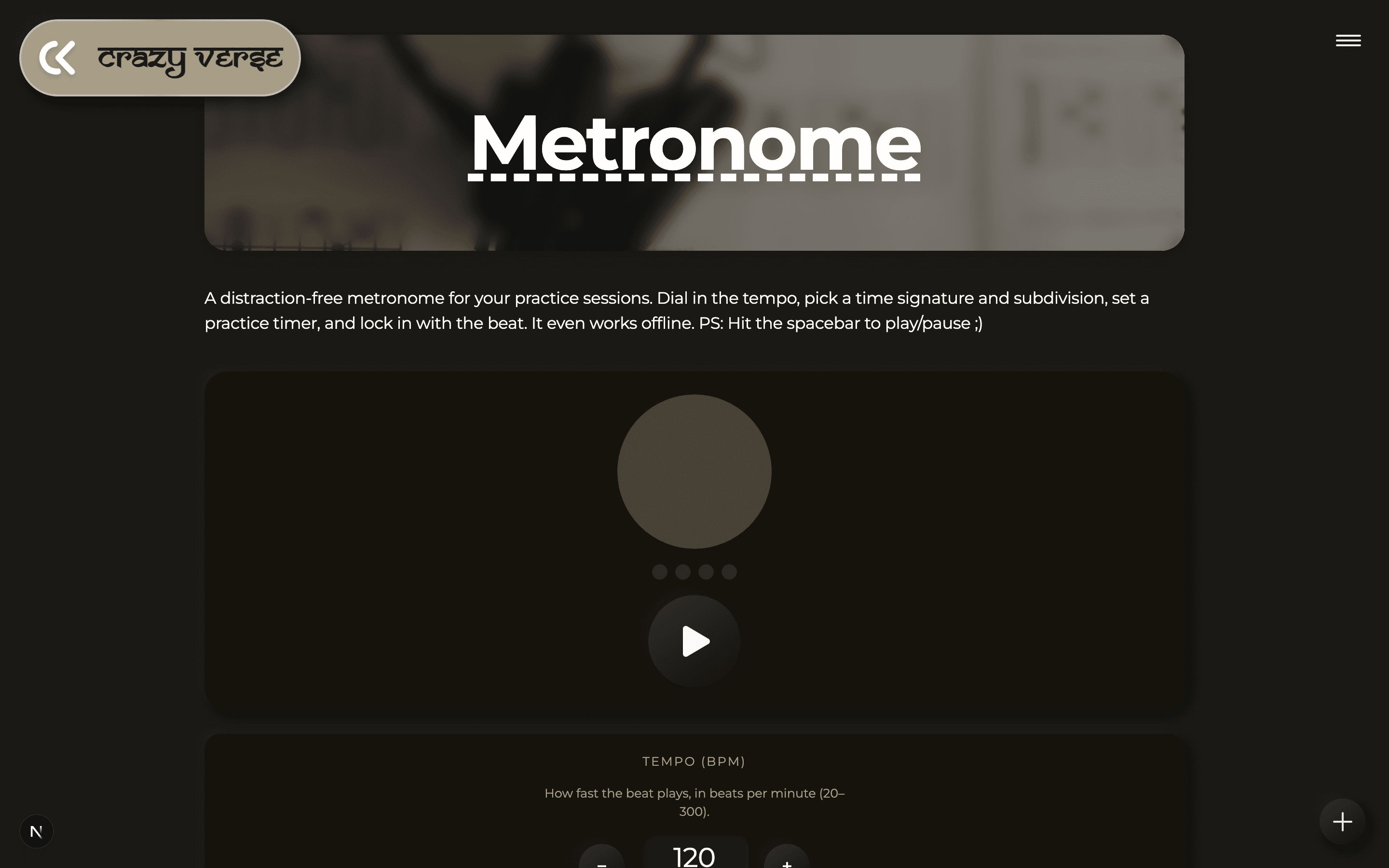
That is exactly what the Metronome on this site is for. It is free, it runs right in your browser, and it even works offline once you have opened it. This guide walks through every part of it and, more importantly, how I actually use it in a practice session.
Why bother with a metronome at all?
Practising with a click is not glamorous. It can feel like a coach standing over your shoulder counting out loud, and honestly, that is the point. When you play alone you tend to speed up in the easy parts and slow down in the hard parts without noticing. The metronome does not let you get away with that. Play along with it for a few weeks and you will feel your internal clock get steadier, which is the thing that makes you sound tight in a band or on a recording.
You do not need to live with it forever. Think of it as scaffolding: use it to build the part clean and even, then take it away.
Set your tempo
Tempo is measured in beats per minute, or BPM. A higher number means a faster click. There are a few ways to set it:
- Type it in: click the BPM number and type the exact tempo you want.
- Nudge it: use the minus and plus buttons to move one BPM at a time. This is the button you will use the most, and I will explain why in the routine below.
- Drag the slider: good for jumping to a rough ballpark quickly.
The tempo goes from a very slow 20 BPM all the way up to a blazing 300 BPM, and it starts at 120 by default, which is a comfortable mid-tempo.
There is also a Tap button, and it is a small superpower. If you are learning a song and have no idea what tempo it is at, play the recording and tap the button along with the beat a few times. The metronome averages your last several taps and sets the tempo to match. If you stop tapping for a couple of seconds it resets, so you can take a breath and tap out a different section without the old taps throwing off the average.

Choose a time signature
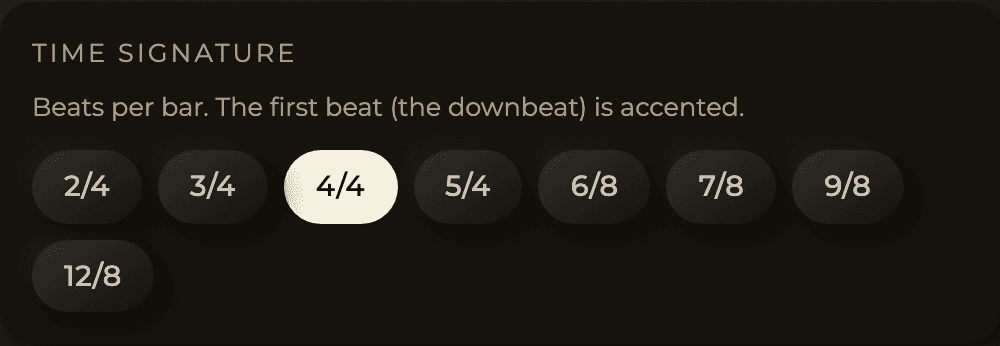
The time signature is that pair of numbers like 4/4. The top number is how many beats are in a bar, and the bottom number is which kind of note gets one beat. You do not need to overthink it to use the tool, but here is the short version:
4/4is home base. Four steady beats per bar, the sound of most pop, rock, and blues.3/4is a waltz. Count "one two three, one two three".6/8has a rolling, swinging lilt you hear in a lot of ballads.- The odd ones like
5/4and7/8are for when you want to practise trickier grooves.
The full set is 2/4, 3/4, 4/4, 5/4, 6/8, 7/8, 9/8, and 12/8, and it starts on 4/4. Whichever you pick, the first beat of each bar is accented: it plays a little louder and a little higher than the rest. That downbeat is your anchor. When you can always hear where "one" is, staying in time gets a lot easier.
Add subdivisions
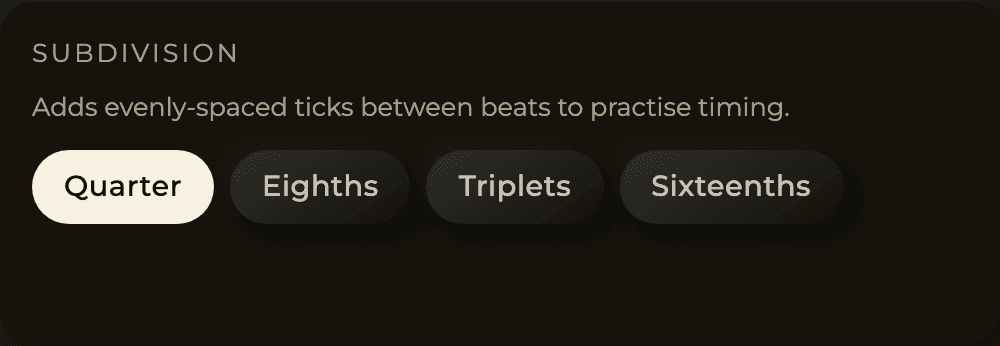
A plain click gives you one tick per beat. Subdivisions add evenly spaced ticks in between, and they are the fastest way I know to tighten up timing:
- Quarter: one tick per beat, the classic metronome feel.
- Eighths: two ticks per beat, so you hear the "and" between the beats.
- Triplets: three ticks per beat, perfect for shuffle and blues feels.
- Sixteenths: four ticks per beat, for fast picking and funk strumming.
Try this: play a riff you already know to a straight quarter-note click, then switch to sixteenths at the same tempo. Suddenly you can hear exactly where every note is supposed to land, including the ones between the beats. Anything that was slightly rushed or dragged becomes obvious.
Pick a sound and volume
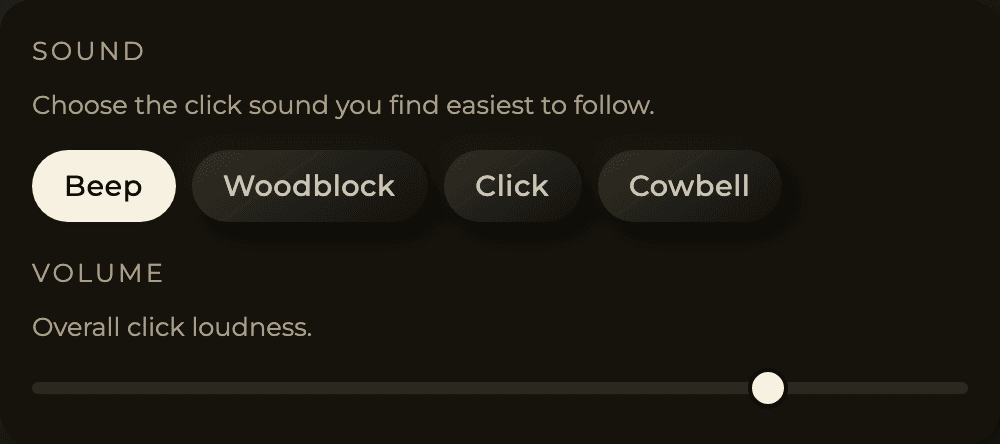
Not every click cuts through every instrument. You get four to choose from: Beep, Woodblock, Click, and Cowbell. On an acoustic guitar I like the Woodblock, and for anything loud the Cowbell tends to punch through. Pick whichever you can hear clearly over what you are playing, and use the Volume slider to balance it against your instrument so it guides you without drowning you out.
Box your session with the practice timer
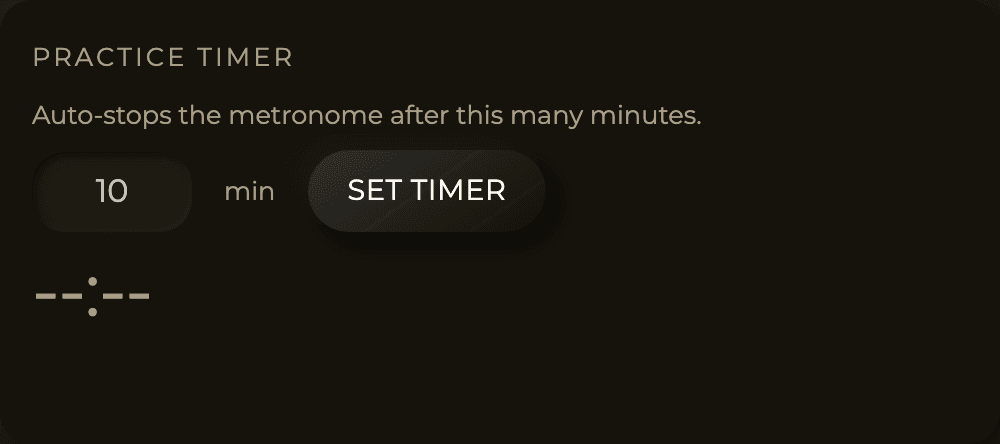
This is my favourite part, and it is the one people skip. The built-in Practice Timer lets you set anywhere from 1 to 180 minutes (it starts at 10). Press Set Timer, and when the time runs out the metronome stops on its own, plays a small chime, and shows a "Practice session complete!" message. Press Clear to remove it.
The reason this matters: a focused, timer-boxed ten minutes on one tricky bar beats an unfocused hour of noodling every single time. Give yourself a clear start and a clear finish and you will get more done.
Small touches that make it nicer
A few things that are easy to miss:
- Spacebar starts and stops the click, so you can keep both hands on the guitar.
- There is a pulsing beat indicator and a row of dots, one per beat, with the downbeat highlighted. You can practise silently and just watch the pulse, or glance at it to check you are locked in.
- It works offline. Open it once and you can install it and keep practising on a flight or anywhere the wifi is bad.
- Your settings are saved on your device, so the next time you open it, your tempo, time signature, and sound are exactly where you left them.
A simple routine that actually works
Put it all together and here is a routine you can run today on any part that is fighting you:
- Go slow first. Set the tempo well below where you can barely play it. Slow enough that it feels almost too easy.
- Play it clean three times in a row. Not fast, clean. If you flub it, the count restarts.
- Nudge up. Tap the plus button to add a few BPM, and repeat. This is why the plus button matters: small, steady jumps are how speed actually gets built, not by hammering it at full tempo and reinforcing the mistakes.
- Add a subdivision ladder. Once the notes are solid, run the same part on eighths, then sixteenths, at a lower tempo. It exposes any timing that was hiding.
- Box it. Set the practice timer for ten or fifteen minutes so the session has a finish line.
If the part is coming off a tab, this pairs perfectly with my guide on reading guitar tabs, since a tab tells you the notes but not the rhythm, and the metronome fills in the missing half. And when you want to understand why a lick sits the way it does over a chord, the Music Theory Visualizer is a great next stop.
Give the Metronome a proper try this week. Ten focused minutes a day will do more for your playing than you would expect.
If you find it useful, do LIKE - SHARE - SUBSCRIBE on my Youtube Channel, where I break down songs and techniques in the same slow, practical way.
Peace ✌️
Get new posts by email
Guitar, theory, and the occasional detour. No spam, unsubscribe any time.